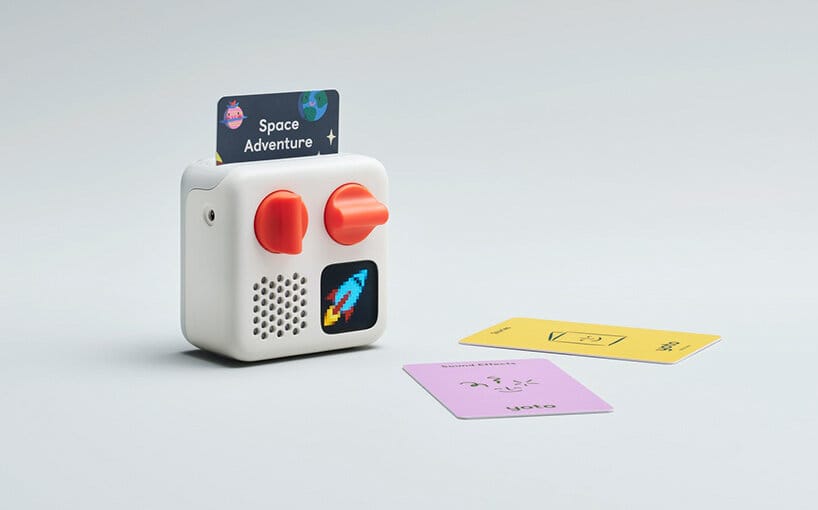
We thoroughly enjoy listening to our Yoto player. As these cards can easily become expensive, my techie husband tinkered around and creatively found a more affordable - yet slightly more complicated - way to add to our library. He has experimented with several different techniques with varying amount of steps, and has deemed this one the most straight forward and effective. Don't hesitate to reach out if it's not working for you. You can reach us at [email protected].
If you prefer following along to a video, watch step-by-step instructions below. The creater @katelynbecze1965 does a beautiful job clearly demonstrating each step.
Instructions
Supplies
Step 1 - Purchase these specific NFC (Near-Field Communication) Cards. Not every NFC card is created equal.
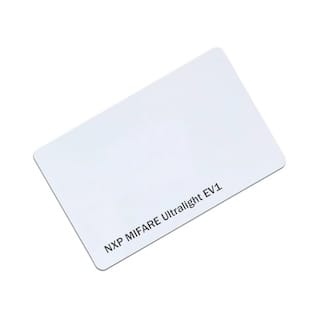
MIFARE Ultralight EV1 48 Bytes 13.56MHz MF Blank RFID NFC Printable Card
These are recommended too and are available in bulk.
Step 2 - Once they arrive, you will need this $3 app to configure each card for the Yoto player to read. (This is a one-time purchase, no monthly or yearly subscription)
 wakdev
Preparing the Files
Step 3 - Put your desired MP3 Audiobook - using the Yoto App - onto the "Welcome Card" that comes with your Yoto Player. (See directions HERE for how to add your own files to the app). The card looks like this:
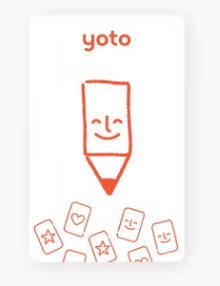
This is a Make Your Own Card (MYO). We keep this card as our "bridge"/ "go-between" and continue to change the files on it as needed. In the following steps, we will be "copying" the files on this card onto the blank NFC card you purchased. Set this MYO Card aside until step 8.
Configure The Cards
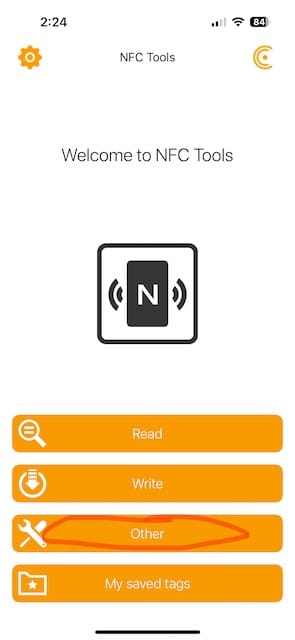
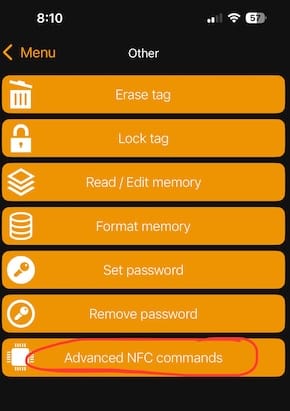
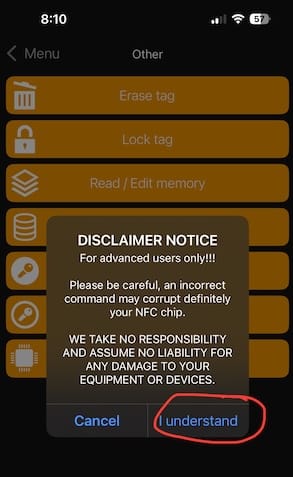
Step 4 - Open the NFC Tools App. Select "Other' and then "Advanced NFC commands." A
disclaimer notice will appear. Click "I understand."
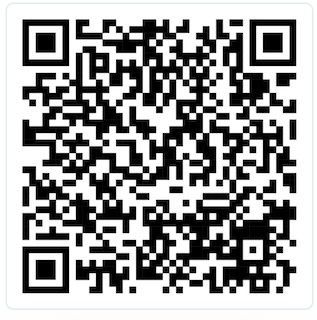
Step 5 - Copy and Paste the following code into the "data" section. (Be sure there are no extra spaces when copying). Then select "Send Command" and tap the blank NFC card to your phone.
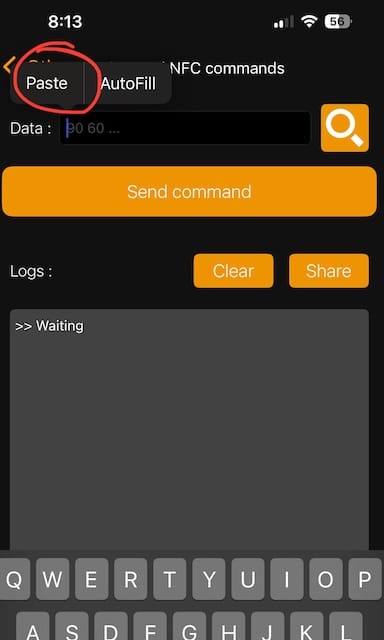
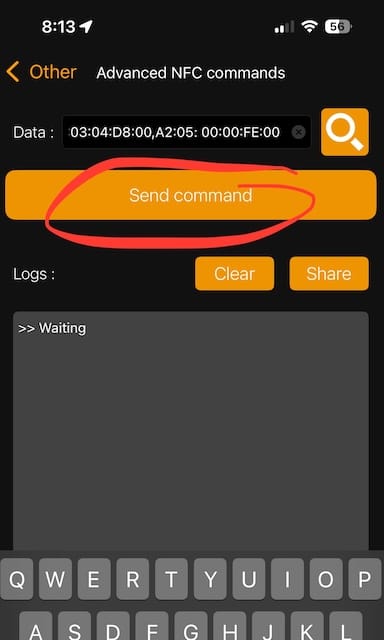
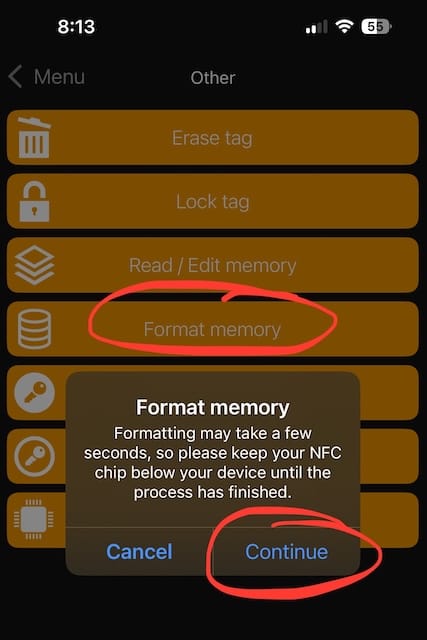
Step 6 - Next select "Format Memory" and hold the blank NFC card to your phone until complete.
Copying Files
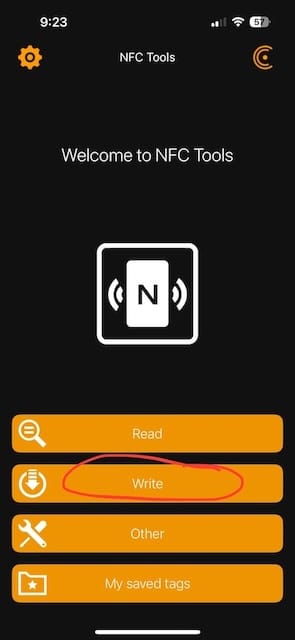
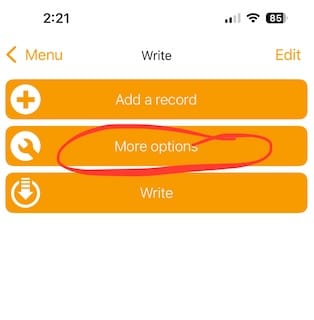
Step 7 - Next select "Write" from the main page. And then "More options."
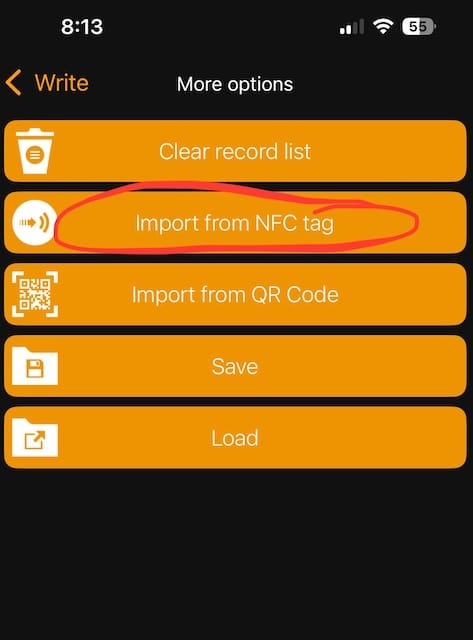
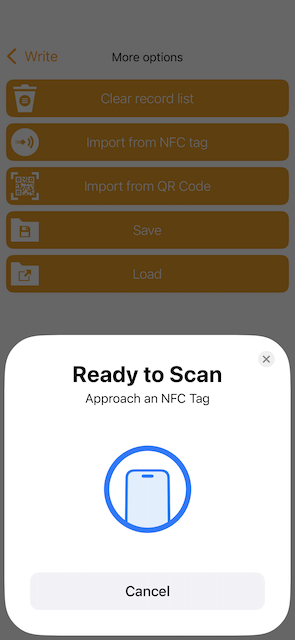
Step 8 - Select "Import from NFC tag." Hold your MYO card (which has your desired story on it) close to the phone. A URL/URI link will appear after the scan is complete.
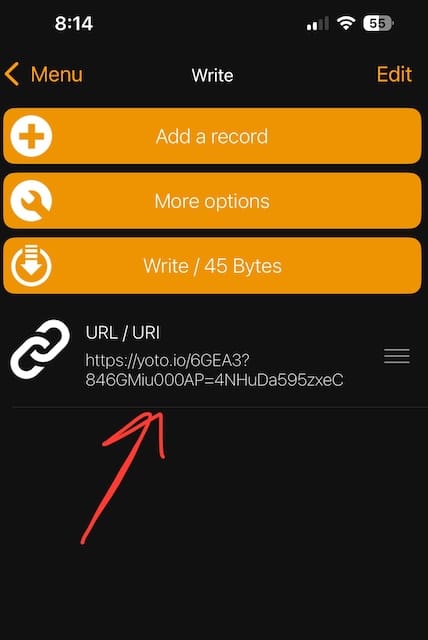
Step 9 - Now you can immediately select "Write/45 Bytes" and this time hold the blank NFC card to your phone.
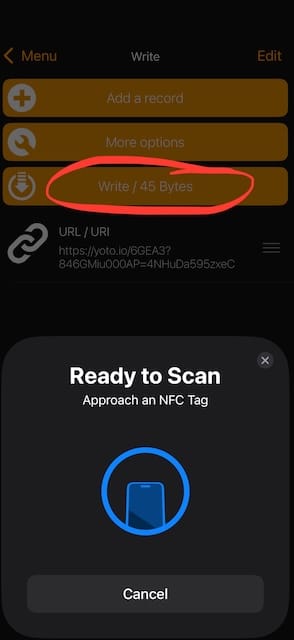
Step 10 - Be sure to erase the URL/URI link you just used before starting the process over to create a new card.
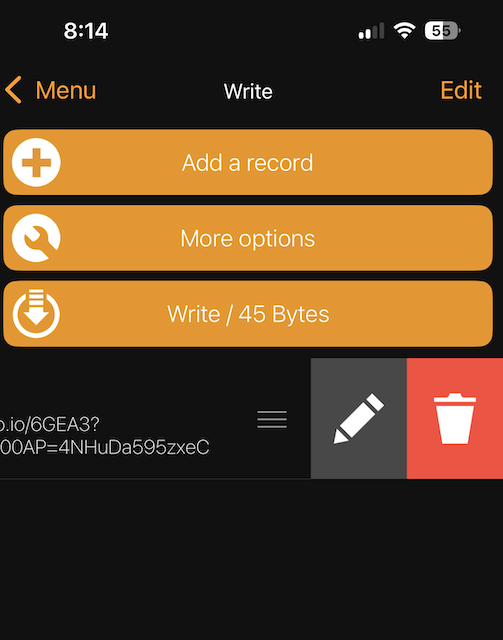
Step 10 - YOU DID IT! You have just successfully made a copy of your MYO card. Now just create a label!
To create more cards, simply clear the files from the MYO Card (the card provided by Yoto) and add a different playlist, audiobook, or music. Repeat the process to transfer the data to another blank NFC card you purchased.
Be sure to test the new card in your player. It often takes a few minutes for all the information to be paired and downloaded. If you face any problems along the way, please don't hesitate to reach out for help at [email protected] and we'll do our best to assist you.